Ask for the report you need, with Reporting Agent
You already know the question. Which clients still have a plan sitting in draft. Which terminating plans owe you a census. Who you need to call before Friday. The work has always been in getting from that question to the answer: choosing the dataset, placing each field, deciding what gets summarized, and only then seeing whether the result tells you what you wanted.
Now you can describe the report instead of assembling it. Open Reports, click Use agent, and say what you want in your own words: "clients with their plans and statuses." The AI Reporting Agent reads the dataset, picks the fields, places them on the right shelves, and builds a working report in front of you.
It stays with you after the first pass. Ask it to add EIN, pull in client state and employee counts, group by plan status, or add a computed column, and each change lands on the live report as you watch. Ask it what an inherited report is actually counting and it will tell you. Ask it to simplify one that has grown unwieldy, or to trim it down to the columns you send to a client, and it will.
The agent works alongside the builder rather than in place of it. Anything it does you can still adjust by hand: move a field to another shelf, change an aggregation, add a filter, set your date format, then hand it back for the next change.
You will find it in the Reports builder behind the Use agent button. Read More
CX on a phone
You are not always at your desk. A client calls while you are between meetings, or you want to see where a plan stands before you walk into one.
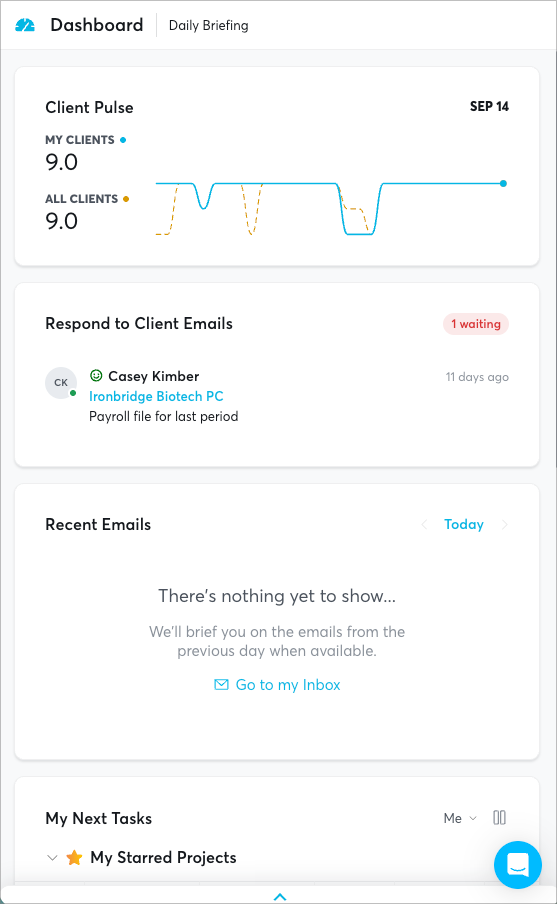
CX now responds to the size of the screen you are on. Pages reflow for phone and tablet widths, so you can open CX on your phone and work through what you need without pinching, zooming, or scrolling sideways to find a column. Nothing changes on a desktop.
There is nothing to turn on and no separate app to install. Sign in to CX from your phone's browser the way you would from your laptop.
Client status controls for reminders
Reminders can now be scoped to the clients you actually want to reach. Some statuses do not warrant a follow-up, and you can now say so directly.
Open Settings > Reminders and Follow-ups and you will find a Client Status Controls section inside each reminder type. Select the client statuses that should not receive reminders, and the reminder service will skip any client carrying one of those statuses on its next run. Because the setting lives inside each reminder type, you can hold back a data request from terminating plans while still sending signature follow-ups to everyone else.
Improvements
Tables: Editable cells now open for editing on a double click, so a single click selects a value without changing it.
Fixes
Reports: Resolved an issue where some reports may not be able to be saved or filtered correctly.