File Form 5500s without leaving Stax.ai
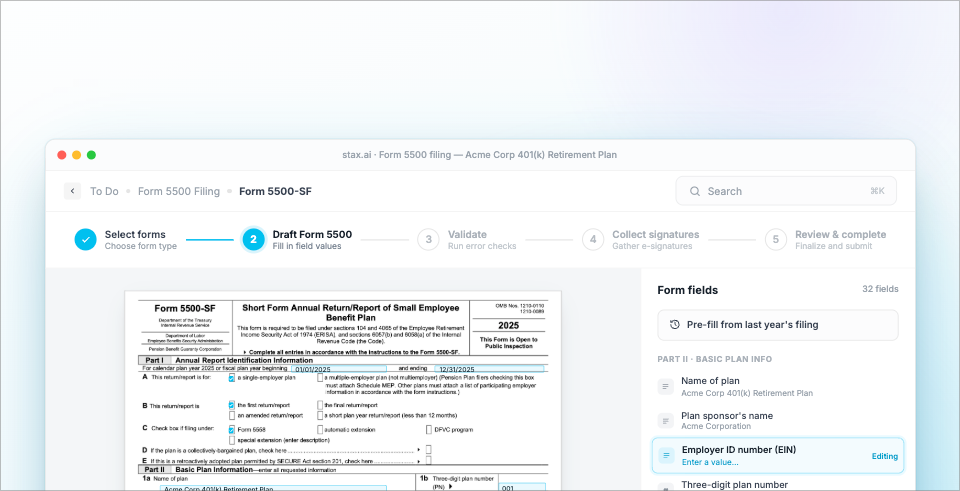
Preparing an annual return has long meant stitching together separate tools — one to fill the form, another to check it, and the government's portal to submit — then chasing down the plan sponsor for a signature.
Government Filings brings all of that into Stax.ai. You can prepare, validate, and electronically file the Form 5500 series — including the 5500, 5500-SF, 5500-EZ, and the 5558 extension, along with their schedules and attachments, and transmit them straight to the government through EFAST2.
A few things make the filing season easier:
Roll forward last year. Start this year's filing from the prior year's return, so plan information carries over and you only review what changed.
Catch errors before the government does. Stax.ai validates each filing against the government's EFAST2 edit checks and flags problems before you submit.
Let sponsors sign their part safely. Send a filing to the plan sponsor through the Client Portal to complete and file automatically to EFAST when credentials are provided; or it returns to you when their step is done.
Always know where a filing stands. The submissions view tracks every filing across your book — draft, submitted, accepted, or rejected — and updates automatically as the government processes it.
This release focused on hardening the filing experience based on early customer feedback: we fixed signature behavior on amended filings, improved acknowledgment ID handling, added auto-formatting for EIN and phone fields, made address fields easier to clear, tightened form calculations and input cleanup, and expanded the form controls that were creating friction during review.
If you have questions about incorporating this into your existing project workflows, your account manager will be happy to help.
Government Filings is rolling out to filing teams now. Once visible you will see this appear via a Filings tab in your account menu.
Tailor your dashboard and Daily Briefing
Every team works its book a little differently, but the dashboard showed everyone the same columns and sections — including ones a given team never used.
You can now shape it around how you actually work:
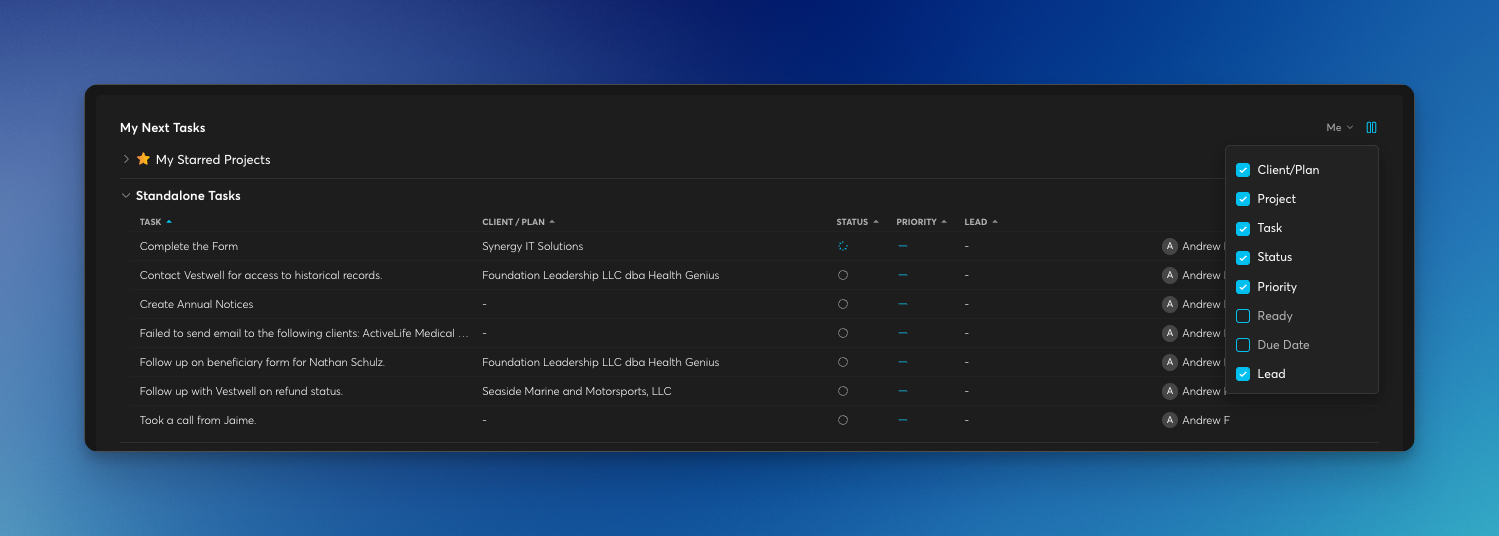
Filter the Daily Briefing to the columns that matter and hide the rest, so the details you rely on — like Client / Plan and Next Task — have room to breathe.
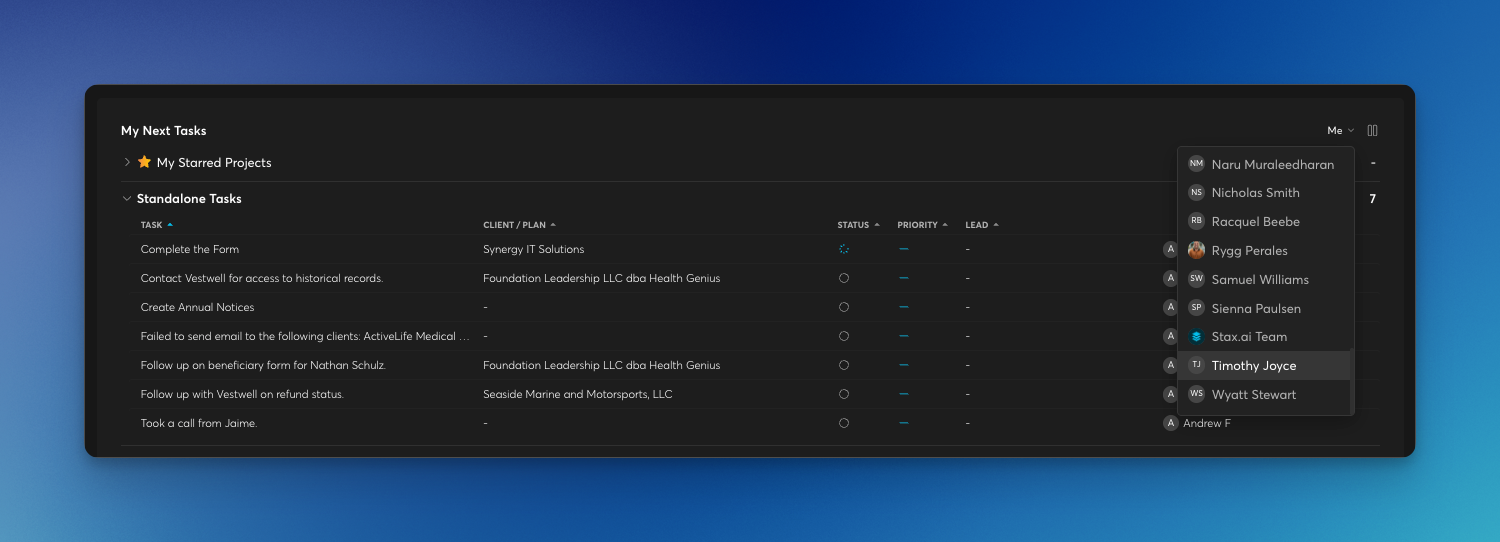
Choose the team member in My Next Tasks, so your task list shows what your team is working on.
Show or hide dashboard sections such as Client Pulse and the email summary, set at the user or team level.
See how your team runs with Workflow Insights
Running a book of plans means knowing where work stands across the whole team, not just plan by plan. Workflow Insights turns your projects, tasks, and automations into a live picture of how your team is operating, with several views admins can switch between:
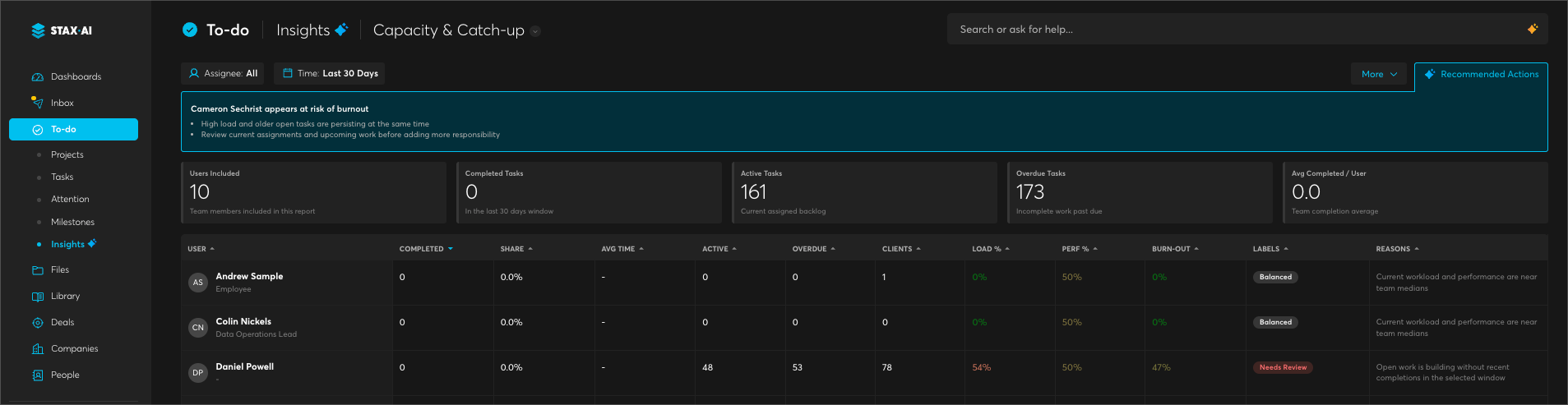
Capacity & Catch-up — see each person's workload, active and overdue tasks, and how balanced their load is, so you can rebalance before anyone falls behind.
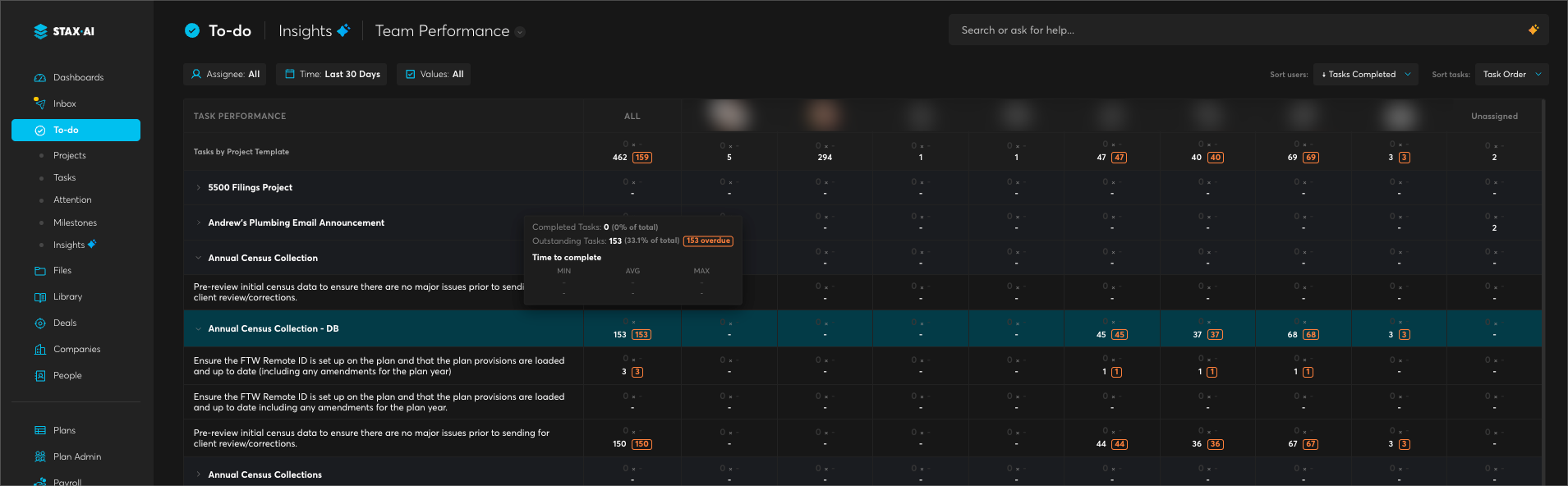
Team Performance — track how much work is getting done over time. This release, the view goes beyond completed tasks to also show outstanding and overdue tasks, with percentages, for the full picture at a glance.
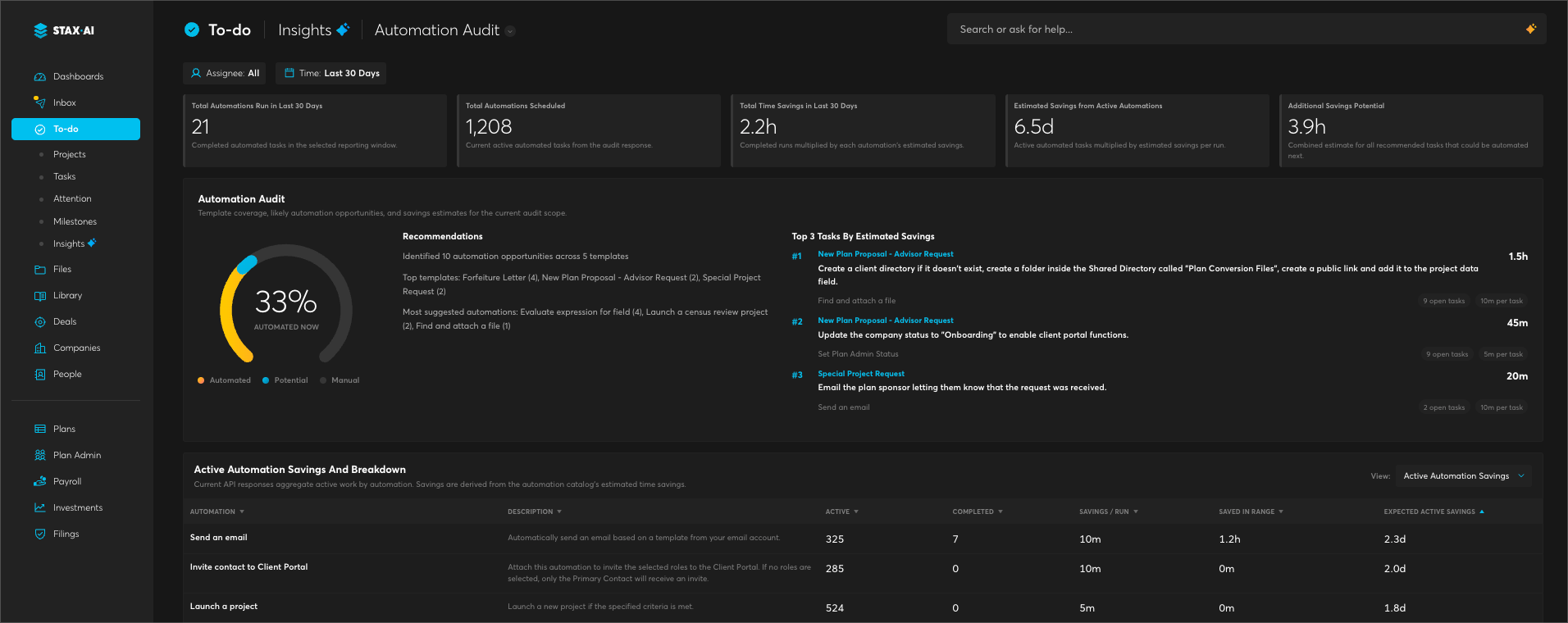
Automation Audit — see how much of your work is already automated, the time it's saving, and the top opportunities to automate next.
Platform Activity — see when your team is most active and what they spend their time on across the platform.
Many teams use these numbers to set internal goals and share progress with leadership. Workflow Insights is available to admins and rolling out across teams.
Export your project template and task data
Pulling project template and task data out of Stax.ai for an outside review used to mean recreating it by hand.
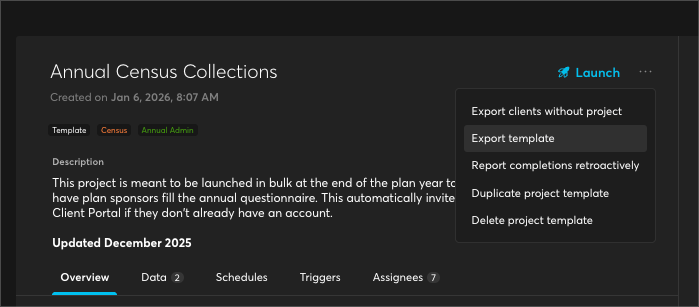
Now you can export it directly. Project template and task data can be downloaded from Stax.ai in a few clicks, ready to share, archive, or review outside the platform.
Export is available today across your projects and issues.
Cumulative milestone display
Milestone progress can now be viewed as a running total across stages, instead of counting each stage on its own.

Turn on the cumulative display option to see totals build stage over stage — a clearer picture of how far a plan's work has progressed at a glance.
Fixes:
Automations — Project launch automations now fire correctly when a deal moves to won or lost.
Census — Fixed census export so identical synced payroll statements are no longer double-counted, while distinct payroll entries are preserved.
Census — Corrected census source logic on the Plan Admin page so report status no longer reflects stale or year-agnostic payroll markers.
Compensation — Fixed an error that caused post-entry-date gross compensation to pull the wrong payroll amounts in certain eligibility scenarios.
Email — Email sends now refresh stale OAuth tokens before each attempt, so connections that appear healthy no longer fail silently.
Forms — Linked fillable fields now sync values back correctly after a form is completed and signed, rather than syncing one way only.
Payroll — Rehire and termination dates are now preserved during a payroll sync refresh instead of being cleared.
Client Portal — Restored missing family relationship links so related people display correctly in ownership and census views.