Schedule an automation to run later
Until now, an automation fired the moment the task before it was marked done. That works when the next step really should happen immediately, but plenty of work doesn't: an email that should go out three days after a census request, a follow-up that belongs at 9am rather than whenever someone happened to close the prior task at 6pm.
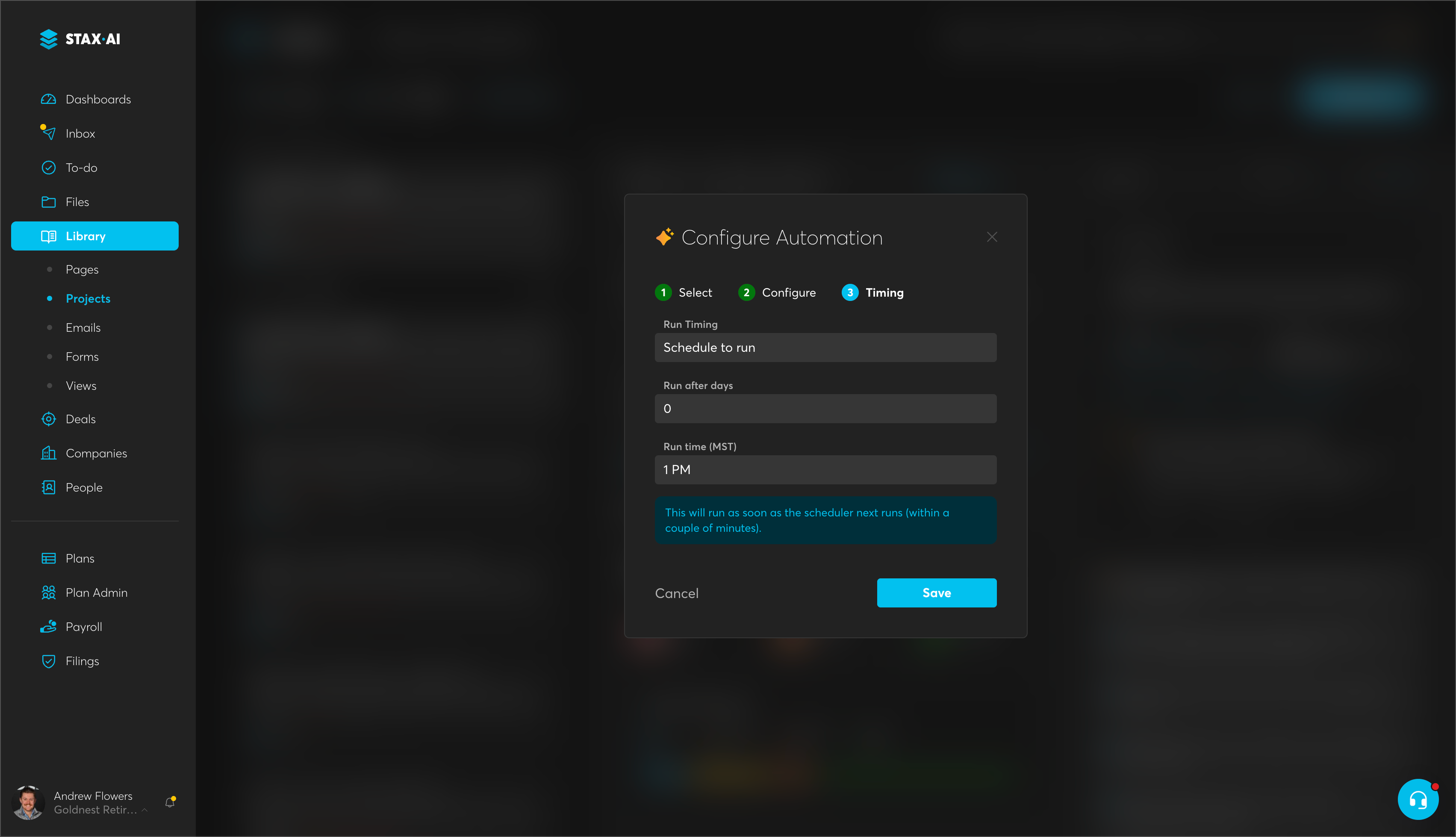
Automation configuration now has a third step for timing. Choose Run immediately to keep the behavior you have today, or choose Schedule run and set how many days to wait and what time of day it should fire. Zero days is allowed, so you can hold an automation until a specific hour on the same day. Once the prior task is completed, the automation waits instead of launching, and a badge on the task shows when it's scheduled to run.
Scheduled automations run once at their configured time and won't re-fire the next day. You'll find the timing step in any automation configuration under Library > Projects.
Fixes
Dashboards: Fixed a case where a task existed and worked correctly inside its project but never appeared on the dashboard, caused by a stale pointer to the project's next task.
Form 5500: Signing a 5500 with a name that carried a leading or trailing space caused the signature to fail. Signature values are now trimmed before submission, and the validate button no longer falls out of sync.
Form 5500: Corrected extra white space around the PDF viewer and its borders on the drafting page.
Files: We’ve resolved an issue where shared and company directory file templates would pull in the root folder, instead of the nested contents.
Participants: Fixed participant card loading in the side menu, which behaved differently from the card in the main panel.
Plan Provisions: Corrected a misspelling of "Selected Accounts" under In-service Withdrawals > Hardship > Allowable Hardship Withdrawal Accounts.